
How to Log Into Kinetic Windstream Email (Guide and Troubleshooting)
Windstream Kinetic Email Login: What I’ve Learned From Actually Fixing It
I’ve spent more time than I’d like to admit helping people get back into their Windstream email accounts. The problems are almost always the same. The confusion is almost always caused by the same thing: Windstream rebranded to Kinetic, scattered its login pages across multiple domains, and left a trail of outdated help articles that send people to the wrong place.
So here’s what actually works, based on what I’ve seen go wrong repeatedly.
The Login Page That Actually Works
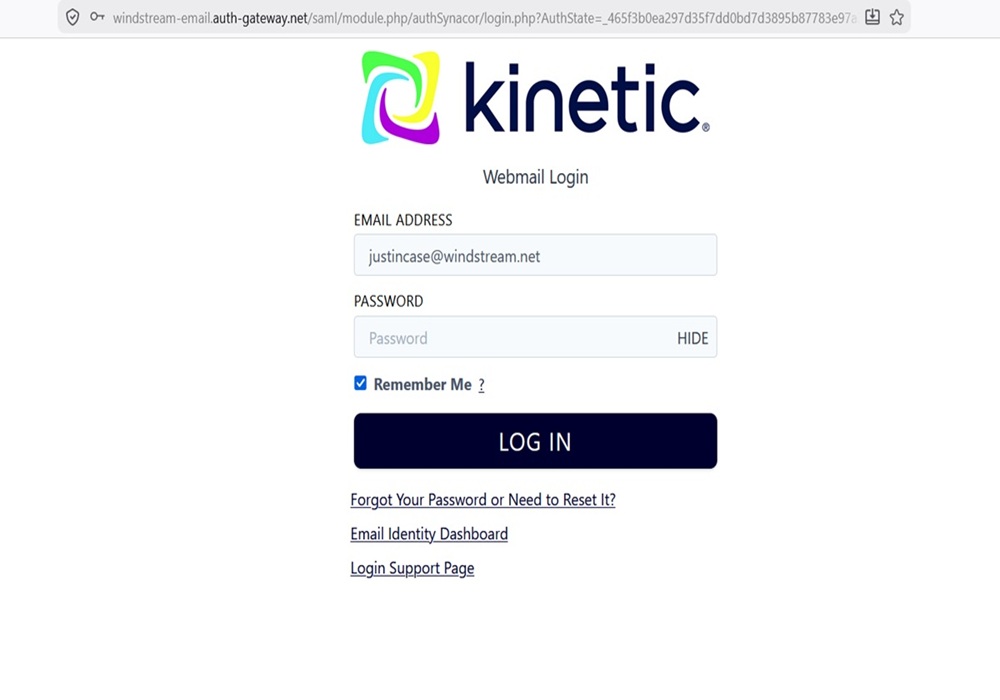
The correct URL is webmail.windstream.net. I bookmark it for everyone I help because half the battle is just getting people to the right page. There are other Windstream and Kinetic-branded portals out there — one for billing, one for business hosting — and they will not work for a standard residential email login.
The Kinetic rebrand confuses people, but it doesn’t change anything about your email. Same address, same password, same inbox. Kinetic is just the new name for the consumer internet service. If you’re going to kinetic.com hoping to check your email, you’re in the wrong place — that’s for account management and billing.
If you have a business domain with a hosting package, the portal is windstreamhosting.biz. Everyone else: stick with the .net webmail link above.
The First Thing I Always Check
Before anything else, I ask one question: are you entering your full email address as the username?
Not just your name. The entire address — [email protected], [email protected], whichever domain you have. This is the single most common reason people see an “invalid login” error, and it looks identical to a wrong password. Windstream uses @windstream.net, @alltel.net, @ctc.net, and @valornet.com depending on where and when you signed up.
I’ve fixed more “broken” accounts by pointing this out than by doing anything else.
Step-by-Step: How to Log In
Step 1. Go to webmail.windstream.net in your browser.
Step 2. Type your full email address — including the @domain part — in the username field.
Step 3. Enter your password. Windstream passwords are case-sensitive, so one accidental capital letter will block you out.
Step 4. Click Sign In. Your inbox should open right away.
If it doesn’t, here’s where I start digging.
Login Problems I See All the Time — And How I Fix Them
The credentials look right but the login still fails
The first thing I do is check Caps Lock. Then I check whether a password manager is filling in an outdated password without the person realizing it. Both of these are embarrassingly simple, but they account for a huge number of “nothing is working” complaints.
If those are fine, I open a private or Incognito window and try from there. If the login works in private mode, the browser cache is the problem — not the account. Clearing cookies and cached files almost always resolves it.
The page loops back to the login screen
This one trips people up because it feels like an account problem. It isn’t. What’s happening is the browser accepts the credentials but fails to set the session cookie properly, so it kicks you right back to the start. I clear the browser data first. If that doesn’t fix it, I disable privacy extensions and ad blockers temporarily — those can interfere with cookie handling in ways that are genuinely hard to diagnose.
VPN is active
I always ask about VPNs. Windstream’s login system treats many VPN exit addresses as suspicious, especially shared ones used by lots of people. The fix is simple: disconnect from the VPN, log in, then reconnect. It’s not a security problem with your account — the system just doesn’t like the connection source.
Too many failed attempts
After enough wrong password entries, Windstream temporarily blocks the IP address. I’ve found the quickest workaround is switching from home Wi-Fi to mobile data, which changes the IP. Waiting and trying later also works. What doesn’t work is keep hammering the login — that just extends the block.
The account has been inactive
This one is harder to fix. Windstream deactivates accounts that haven’t been accessed for around 180 days. When this happens, the correct password won’t work — not because the password is wrong, but because the mailbox has been suspended. The only path forward is calling support and asking about reactivation. I’ve seen accounts recovered this way, but it requires that phone call.
Extensions blocking the form
Ad blockers and script blockers can break the login form silently. The page loads fine, the form appears, but nothing happens when you try to submit. I disable extensions one at a time until I find the culprit, or just whitelist webmail.windstream.net entirely.
Device clock is off
Strange one, but real. If the system clock is wrong, SSL certificate validation fails and secure pages won’t load or submit correctly. I set the device to sync time automatically and reload the page. Solves it every time.
Setting Up Windstream Email on a Phone or Email App
When someone wants to use Windstream email in Outlook, iPhone Mail, Gmail, Thunderbird, or Android Mail, I give them these settings exactly and tell them not to guess at anything:
Incoming Mail — IMAP (what I always recommend)
- Server: imap.windstream.net
- Port: 993
- Encryption: SSL/TLS
Incoming Mail — POP3 (only if IMAP isn’t an option)
- Server: pop.windstream.net
- Port: 995
- Encryption: SSL/TLS
Outgoing Mail — SMTP
- Server: smtp.windstream.net
- Port: 465 (preferred) or 587
- Encryption: SSL/TLS
- Authentication: Required — full email address and password
I always push IMAP over POP3. IMAP keeps everything in sync across devices in real time. POP3 pulls messages to one device and leaves everything else behind — it’s a pain if you use more than one screen.
If someone can receive mail but not send it, that’s almost always SMTP authentication. The outgoing server requires it, and a lot of apps don’t enable it by default. Check that setting before anything else.
If the phone just won’t sync at all, I delete the account from the phone and start fresh with the settings above. Trying to edit a broken configuration rarely works cleanly. A clean setup almost always does.
Resetting the Password
Some accounts can reset through the webmail page directly. Others — usually older accounts or ones tied to legacy services — need support intervention to initiate a reset. If the self-service option doesn’t appear or doesn’t work, the call to support is the right next step.
One thing I tell people: when you create the new password, make it something you can type accurately on a phone keyboard. The most frustrating post-reset problem I see is a password that works fine on a desktop but gets mistyped on a touchscreen every single time.
Windstream Support Contacts
- Technical Support (24/7): 1-800-347-1991
- Kinetic Billing Support: 1-866-445-8084
- Live Chat: Support widget at kinetic.com
- Twitter/X: @GoKineticHome
For inactive account reactivation specifically, I always recommend calling. Chat support can be slow for account-level issues, and this particular problem almost always needs a real person to look at the account status.
The Pattern I Keep Seeing
After going through this with enough people, the same four things come up over and over: wrong portal, incomplete username, stale browser cache, or broken app settings. That’s it. Those four things cover the vast majority of Windstream login problems I’ve ever encountered.
Start there. Use the .net webmail page. Type your full email address. Clear your cache if it loops. Use IMAP with SSL if you’re setting up a phone or app.
If you’ve genuinely worked through all of that and still can’t get in, the account is probably deactivated — and that’s a support call, not a settings problem. The account is likely still there. It usually just needs someone on Windstream’s end to wake it back up.
What is the official Windstream email login page?
The official Windstream and Kinetic email login page is https://webmail.windstream.net/, where you can access your Windstream.net email inbox from any browser. If the page does not load, try turning off VPNs and ad blockers, switching from public Wi-Fi to mobile data, clearing browser cookies, and testing another browser like Chrome or Edge because login failures are often browser or network related rather than account related.
How do I access my Windstream email account?
You can access your Windstream email account by visiting webmail.windstream.net and signing in with your full Windstream or Kinetic email address and password. If login keeps failing, manually type the password instead of copying it, check Caps Lock, remove accidental spaces, and test another device because saved passwords are one of the most common causes of login problems.
How do I reset my Windstream email password?
You can reset your Windstream email password at https://login.windstream.com/ext/pwdreset/WSIdentify?AdapterId=myWindstreamWeb. After resetting your password, immediately update the password in Outlook, iPhone Mail, Android Mail, Thunderbird, and any other device using the account because repeated login attempts with an old password can temporarily lock the mailbox.
How do I change my Windstream or Kinetic email password?
You can change your Windstream or Kinetic email password through the Go Kinetic account portal or directly through Windstream password management. The official support instructions are available at this Kinetic support page, and after changing the password you should reboot your devices and remove old saved credentials to avoid repeated authentication errors.
Why is my Windstream email login not working?
Windstream email login problems are usually caused by wrong passwords, corrupted browser cookies, VPN interference, outdated saved credentials, or temporary internet issues. Try Incognito mode, restart your router, disable browser extensions, manually enter the password, test another browser or device, and confirm whether webmail works before assuming your entire mailbox is down.
Why is my Kinetic Windstream email suddenly not working?
Kinetic Windstream email may suddenly stop working after password changes, app updates, Outlook profile corruption, or SMTP authentication problems. The first thing you should do is test login directly at webmail.windstream.net, because if webmail still works normally then the problem is almost always your device configuration rather than the Windstream servers.
What are the official Windstream IMAP settings?
The official Windstream IMAP server is imap.windstream.net using SSL port 993. IMAP is recommended because it synchronizes your inbox, folders, sent mail, and deletions across phones, tablets, Outlook, Apple Mail, Thunderbird, and webmail instead of downloading messages to only one device.
What are the official Windstream POP3 settings?
The official Windstream POP3 incoming mail server is pop.windstream.net using SSL port 995. POP3 is older and mainly useful if you want mail stored locally on one computer, but many users accidentally lose synchronization between devices because POP can remove mail from the server after downloading.
What are the official Windstream SMTP settings?
The official Windstream outgoing SMTP server is smtp.windstream.net using SSL port 465 or TLS port 587. If you can receive mail but cannot send, check that “Outgoing server requires authentication” is enabled and confirm your full email address is being used as the SMTP username.
What is the Windstream incoming mail server?
The Windstream incoming mail server is imap.windstream.net for IMAP and pop.windstream.net for POP3. Most users should choose IMAP because it keeps messages synchronized across devices and reduces the risk of disappearing emails or mismatched folders.
What is the Windstream outgoing mail server?
The Windstream outgoing mail server is smtp.windstream.net. If your email app keeps showing SMTP errors, verify that SSL or TLS encryption is enabled, SMTP authentication is turned on, and your antivirus or firewall is not blocking outgoing mail connections.
What Windstream email ports should I use?
The recommended Windstream ports are IMAP 993 with SSL, POP3 995 with SSL, SMTP 465 with SSL, and SMTP 587 with TLS. If sending mail suddenly fails, try switching between SMTP ports 465 and 587 because some routers, firewalls, or internet providers block one of the outgoing ports.
Does Windstream email require SSL or TLS?
Yes, Windstream email should normally be configured with SSL or TLS enabled for both incoming and outgoing mail. Secure encryption protects your login credentials and also prevents many authentication errors that occur when outdated non-secure settings are used.
How do I set up Windstream email on Outlook?
To set up Windstream email in Outlook, choose manual IMAP setup and enter imap.windstream.net for incoming mail and smtp.windstream.net for outgoing mail. Use your full email address as the username, enable SSL/TLS encryption, enable SMTP authentication, and if Outlook still fails try creating a brand-new Outlook profile because corrupted profiles are extremely common.
Why does Outlook keep rejecting my Windstream email password?
Outlook may repeatedly reject your Windstream password because old credentials are cached locally or Outlook is autofilling incorrect IMAP or SMTP settings. Reddit users frequently report this issue, and one of the most reliable fixes is removing the entire Outlook profile and recreating it from scratch instead of only updating the password.
Why can I receive Windstream email but not send?
If you can receive email but cannot send, the problem is almost always SMTP-related. Double-check smtp.windstream.net, verify SMTP authentication is enabled, confirm ports 465 or 587 are being used, and temporarily disable antivirus email scanning because security software often blocks outgoing SMTP traffic.
Why can I send Windstream email but not receive?
If you can send but not receive email, your incoming IMAP or POP settings are probably incorrect. Verify imap.windstream.net with SSL port 993, check spam and trash folders in webmail, and confirm that your mailbox is not over storage limits because full mailboxes may silently stop accepting new mail.
Why is Windstream email not receiving emails?
Windstream email may stop receiving messages because of spam filtering, full storage, syncing problems, or incorrect IMAP settings. First test webmail directly, then check junk folders, delete old messages to free space, and temporarily disable filters or forwarding rules because users sometimes accidentally route incoming messages elsewhere.
Why does Windstream email keep asking for my password?
Windstream email repeatedly asking for your password usually means saved credentials are outdated or corrupted. Remove the account from your mail app completely, restart the device, manually re-enter the password, and make sure you are using the full email address as the login username.
Why is my Windstream email so slow?
Windstream email can become slow because of overloaded browsers, huge inboxes, slow internet connections, or large attachments syncing through Outlook or mobile apps. Test the account in webmail first because if webmail is fast but Outlook is slow, the problem is almost always local to your computer.
How do I set up Windstream email on iPhone?
To add Windstream email to iPhone, go to Settings → Mail → Accounts → Add Account → Other → Add Mail Account and enter your account manually. Use IMAP with imap.windstream.net port 993 and smtp.windstream.net port 465, and if setup hangs during verification switch from Wi-Fi to mobile data and try again.
How do I set up Windstream email on Android?
To set up Windstream email on Android, open your mail app, choose Add Account, select IMAP, and manually enter the official Windstream server settings. Windstream support specifically recommends using IMAP, and if setup fails restart the phone after entering the settings because Android sometimes delays applying new authentication details.
How do I add Windstream email to Gmail?
You can add Windstream email to Gmail by opening Gmail Settings → Accounts and Import → Check mail from other accounts and entering your POP settings. Use pop.windstream.net with SSL port 995, and remember that Gmail mail-fetching is periodic rather than instant like IMAP synchronization.
How do I transfer my Windstream email to Gmail?
You can move Windstream email to Gmail using Gmail’s import tool or by connecting both accounts through IMAP in Outlook or Thunderbird and copying folders across. Before canceling Windstream service, update banks, utilities, streaming services, shopping accounts, and social media logins tied to the old email address so important verification emails are not lost.
Can I keep my Windstream email address if I leave Windstream?
You may or may not be able to keep your Windstream email address after canceling internet service, so contact Kinetic support before disconnecting your account. Reddit users frequently warn against relying permanently on ISP email addresses because losing internet service can also mean losing access to the email identity tied to it.
Can I keep my Windstream email address if I switch to Gmail?
Switching to Gmail does not automatically preserve your Windstream address because the Windstream mailbox still belongs to the ISP account. The safest approach is running both accounts simultaneously for several months while gradually updating important services and contacts.
What is better, Gmail or Windstream email?
Gmail is usually better for long-term reliability because it is independent of your internet provider and easier to keep permanently. Windstream email still works well for many users, but ISP-based email creates risk if you move, switch providers, or lose access to the associated service account.
Is Windstream email POP or IMAP?
Windstream supports both POP3 and IMAP, but IMAP is recommended for almost everyone. IMAP keeps all devices synchronized, while POP3 downloads mail locally and can create confusion when messages disappear from phones or webmail.
How do I know whether my Windstream email is using POP or IMAP?
You can determine whether your account is POP or IMAP by checking the incoming server in your email app settings. If the server is imap.windstream.net you are using IMAP, and if the server is pop.windstream.net you are using POP3.
Is there a Kinetic Windstream email app?
There is no required dedicated Kinetic email app because Windstream email works through webmail and standard mail apps like Outlook, Gmail, Apple Mail, and Thunderbird. Most users simply access email through webmail.windstream.net or configure IMAP on their preferred device.
How do I troubleshoot Windstream email login problems?
To troubleshoot Windstream email login problems, turn off VPNs and ad blockers, clear cookies, try Incognito mode, manually type your password, restart your router, test another browser, and check whether login works on another device. If login works on your phone but not your computer, the issue is almost certainly local browser or Outlook configuration rather than a Windstream outage.
How do I troubleshoot Windstream SMTP errors?
To troubleshoot Windstream SMTP errors, verify smtp.windstream.net is configured correctly with SSL or TLS enabled and make sure outgoing authentication is turned on. Reddit users and IT forums repeatedly mention antivirus programs and firewalls blocking SMTP connections, so temporarily disabling email scanning can often resolve stubborn sending failures.
Why does Outlook autofill the wrong Windstream server settings?
Outlook sometimes autofills incorrect IMAP or SMTP settings from old cached profiles or autodiscover data. Reddit users report that creating a completely new Outlook mail profile through Control Panel often fixes the issue better than simply editing the existing account.
Why does Windstream email work in webmail but not Outlook?
If Windstream email works in webmail but not Outlook, the mailbox itself is functioning correctly and the problem is local to Outlook. Remove the account, recreate the Outlook profile, verify SSL and SMTP authentication, and disable add-ins temporarily because corrupted Outlook profiles are extremely common.
Why does Windstream email work on my phone but not my computer?
If Windstream email works on your phone but not your computer, the issue is likely Outlook, Thunderbird, antivirus filtering, or Windows firewall settings. Restart the computer, repair the Outlook account, disable antivirus email scanning temporarily, and verify your IMAP and SMTP settings again.
Why does Windstream email work on my computer but not my phone?
If Windstream email works on desktop but not mobile, your phone likely has incorrect or outdated credentials saved. Remove the account from the phone completely, restart the phone, and re-add it manually using the official Windstream IMAP and SMTP settings.
What should I do before calling Windstream support?
Before contacting support, test login through webmail, restart your router, clear browser cache, disable VPNs, and determine whether the problem affects one device or all devices. Having the exact error message ready will help support agents diagnose the issue much faster.
How do I contact Windstream or Kinetic email support?
You can contact Windstream or Kinetic support through https://www.gokinetic.com/support/ or through the customer service phone numbers listed in your account portal. When contacting support, explain whether the problem affects webmail, Outlook, phones, or only sending mail because this helps route you to the correct support team faster.
How do I know if Windstream email is down?
You can check whether Windstream email is down by testing webmail, switching internet connections, and searching Reddit or social media for outage reports. If multiple devices and networks cannot access webmail.windstream.net, the issue is more likely a Windstream outage than a local device problem.
Why does Windstream email stop working after a password change?
Windstream email often stops working after password changes because old credentials remain saved on phones, tablets, Outlook, or other mail apps. One device repeatedly retrying the wrong password can trigger account lockouts or authentication loops across all your devices.
Why does Thunderbird fail to connect to imap.windstream.net?
Thunderbird connection failures are usually caused by wrong passwords, incorrect SSL settings, or outdated stored credentials. Mozilla support threads show many users fixing this problem by deleting saved passwords inside Thunderbird and re-entering the account manually.
How do I back up Windstream email before canceling service?
You can back up Windstream email by connecting the account through IMAP in Outlook or Thunderbird and exporting folders locally before canceling internet service. This is critical because once an ISP mailbox is deleted, recovering years of messages, attachments, and contacts can become impossible.
What domains use Windstream email?
The most common Windstream email domain is @windstream.net, although some customers may still use legacy regional domains connected to older services. Always enter the full email address exactly as assigned because the domain after the @ symbol is part of the login identity.
Can I use Windstream email with Apple Mail?
Yes, Windstream email works with Apple Mail using IMAP and SMTP configuration. Use imap.windstream.net for incoming mail, smtp.windstream.net for outgoing mail, enable SSL/TLS, and use your full email address for both incoming and outgoing authentication.
Can antivirus software block Windstream email?
Yes, antivirus and firewall software frequently block SMTP connections or interfere with SSL authentication. If Windstream email suddenly stops sending mail, temporarily disable email scanning or firewall filtering to test whether security software is causing the problem.
Why do Reddit users recommend moving away from ISP email addresses?
Reddit users frequently recommend moving away from ISP email because changing internet providers can also mean losing access to the associated mailbox. Many people now prefer Gmail or Outlook because those accounts stay independent from home internet contracts and service changes.
Why does Windstream SMTP suddenly stop working?
Windstream SMTP can suddenly stop working because of authentication errors, firewall interference, port blocking, or antivirus filtering. Reddit and support forums commonly suggest switching between ports 465 and 587, re-entering passwords manually, and recreating the email profile entirely when SMTP authentication loops begin.
How do I fix Outlook constantly asking for my Windstream password?
If Outlook constantly asks for your Windstream password, remove cached credentials from Windows Credential Manager and recreate the Outlook profile completely. Tech-support discussions repeatedly show that corrupted Outlook credential caches can continue failing even after the correct password is entered.
Can I use Windstream email with Thunderbird?
Yes, Windstream email works with Thunderbird using IMAP and SMTP configuration. Use imap.windstream.net with SSL port 993 and smtp.windstream.net with SSL port 465, and if Thunderbird keeps rejecting your password remove saved passwords under Thunderbird settings before retrying setup.
What is the safest way to migrate away from Windstream email?
The safest migration strategy is creating a Gmail or Outlook account first, forwarding important mail, updating account logins gradually, and keeping both inboxes active for several months. This overlap period prevents missed password resets, billing notifications, medical emails, and other critical messages during the transition.
How do I recover a locked Windstream email account?
You can recover a locked Windstream email account through the official recovery system at Windstream account recovery. Locked accounts are commonly triggered by repeated failed login attempts from phones, tablets, or Outlook installations still using outdated passwords.